
 ">WeChat
*** Method I, simple only three commands use windows remote desktop connection with port 3389
screen -s 1
sudo apt-get update
sudo apt-get install lxde
sudo apt-get install xrdp ***Recommended use of methodology I Ignore the second method, because it has little effect on vps performance.
The nanny-level tutorial installs desktop environments for running scripts
LXDE is the lightweight Linux desktop environment, which is small and efficient, as recommended by many very good-ass foreigners Coder, so it was chosen to add LightVncServer to make this tutorial.
Notes_: preparatory work
1 Hardware environment: Linux VPS host, with at least 256 trillion memory and recommended 512 trillion memory or higher
2. System environment: installation of Debian or Ubantu systems and recommendation of Ubuntu 14.04 64-bit version (measured)
3 Tools: Putty, VNC Viewer
Ps: In Putty, click the right mouse button to paste a copy of the code into Putty and press back to execute Linux command.
Method II. Installation process
1. Connect VPS hosts with Putty and login with root.
2. Unmount or remove unnecessary system services:
apt-get purge apache2* bind9* samba*
At this stage, there will be a hint of whether to continue with the installation, showing Do you want to continue? [Y/n], enter Y and then press back to confirm that it continues.
3. Upgrade of Debian or Ubantu systems:
apt-get update
apt-get upgrade
At this stage, the implementation of apt-get upgrade will give a hint as to whether or not to proceed with installation; it will also have a graphical interface and will just knock back twice on the pass.
Installation of Nano Editor:
apt-get install nano
5. Installation of LXDE+TightVncServer desktop environment:
apt-get install xorg lxde-core tightvncserver
At this stage, there will be a hint of whether to proceed with the installation, as described above.
6. Launch VNC desktop:
tightvncserver :1
At this stage, you need to set the VNC password and enter it twice; then you’ll go out with a hint that N will drop the key.
7. Discontinuation of VNC services:
tightvncserver -kill :1
Open VNC configuration file:
*** This step is important and has to be suot because it’s reroot/.vnc/editing files
nano ~/.vnc/xstartup
Paste the following Code text to the end of the document:
lxterminal &
/usr/bin/lxsession -s LXDE &
Press Ctrl+X, enter Y, press return keys to save and exit file editing.
10 Re-launch VPS host:
reboot
11, re-entry with Putty to start VNC services:
*** It’s important su root and then start the service.
vncserver :1 -geometry 1024x768 -depth 16 -pixelformat rgb565
 xrdb: No such file or directory.
 xrdb: Can't open file '/home/<user>/.Xresources'
于是touch ~/.Xresources
You should create the correct file, and TightVNC will populate it automatically. This can be done with the command:
安装过程已经完毕,接下来,在本地计算机中打开VNC软件,远程连接VPS主机,看看LXDE+VNC桌面环境安装后的效果。
Connecting desktops
Open VNC Viewer software, enter your VPS host IP address with port number, usually in the following format: xx.x.xx.xx:5901.
Click on the Connect connection, enter the password set for installation and confirm login in the popup dialogue box. After login is successful, you will be presented with a classic LXDE desktop, as illustrated below:
Install Firefox and support Chinese
We prefer to use the FIREFOX fire fox browser, but in the DEBIAN system the flint fox browser is called Eiceweasel and we need it.
apt-get install iceweasel
If we need to get on the Chinese site, and if we need to solve the problem of Chinese not being confused, then we need to support the Chinese language.
apt-get install ttf-arphic-ukai ttf-arphic-uming ttf-arphic-gbsn00lp ttf-arphic-bkai00mp ttf-arphic-bsmi00lp
So, let’s check the LXDE+VNC desktop and see how it looks.
未经允许不得转载:萌萌Apprentissage » Implementation of LXDE+VNC desktop environment tutorials on Debian or Ubantu systems vps


 linux One Chinese script
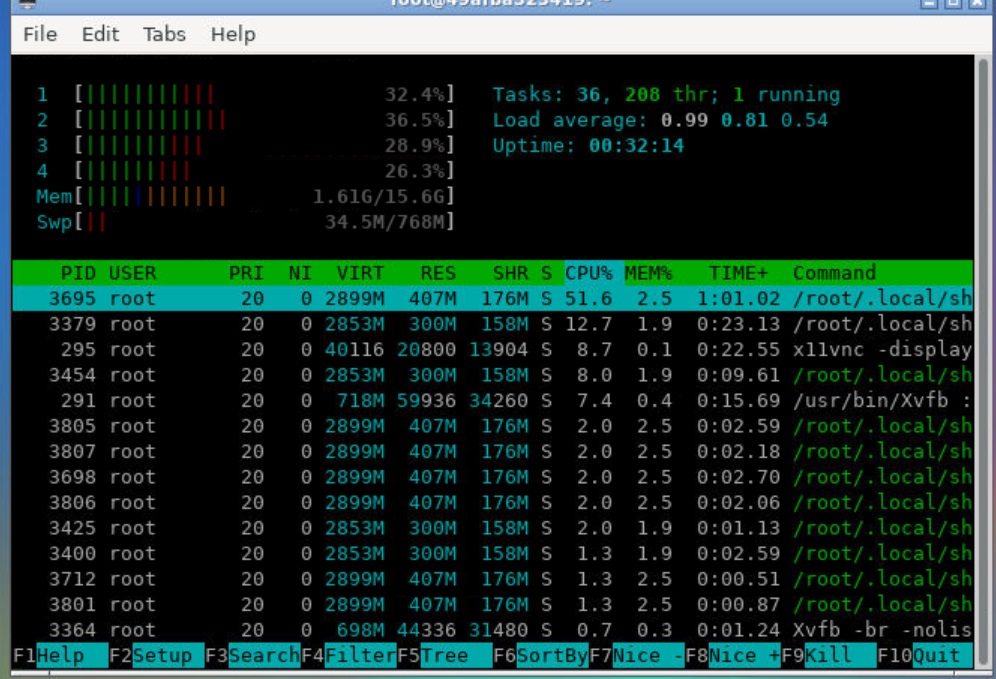 Google shell enable enhanced mode 4 nuclear 16G RAM
 Tmux use tutorial
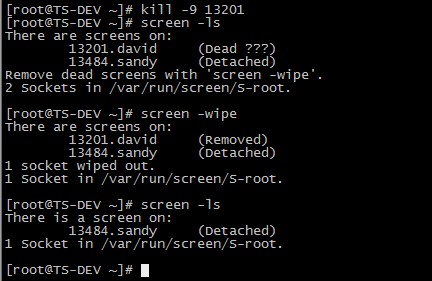 Screen's summary
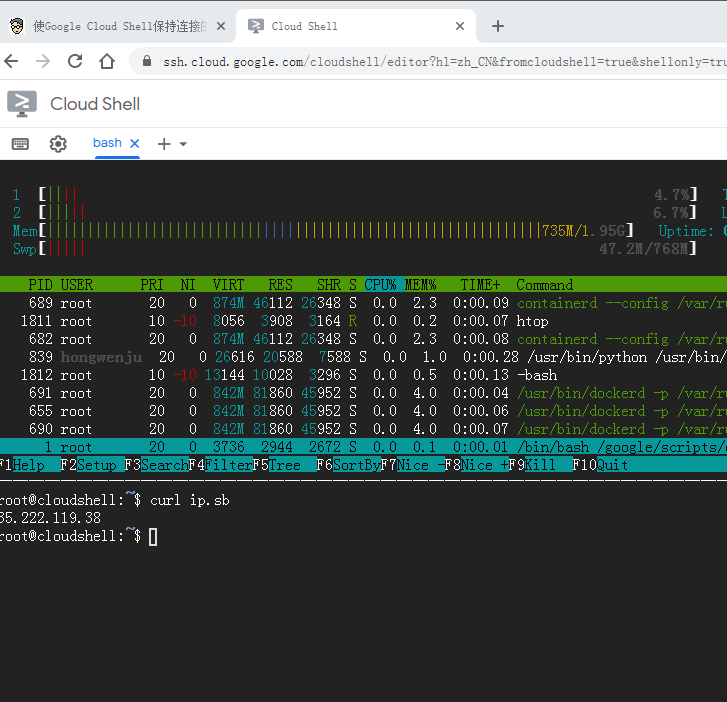 I'm gonna get you a new one, shell.cloud.google on the line.
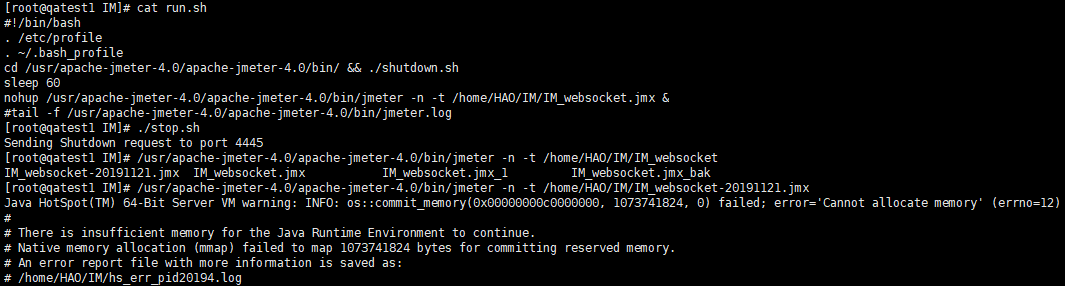 Linux Memory Clearing

