
 ">WeChat
screen It is Linux’s commonly used command to create a session, which can switch the conversation to the backstage and facilitate other operations. The SSH connection server may be interrupted if you encounter an overtime or unexpected breakout, and it can be successfully solved with a screen. Screen is a very practical tool that provides the ability to use multiple shell windows (sessions) from a single SSH session (or local session). When a session is separated or the network is interrupted, the process started in a screen session will still run and you can reconnect to a specified screen session at any time.
Start a screen session
You can simply enter it in the command line.screen, so you can start and enter a screen session. If you want to mark this screen session, give it a name, you can use it.screen -S ssesion_nameReplace with the abovescreen, so that you can start and enter a session called session_name.
Execute commands in screen sessions
Once you’re in a screen session, you can do some orders from the screen session that you want to do.apt update && apt upgrade -y。
Split the screen session
If you’ve been doing this for a long time, like the upgrades, and you don’t want to wait or do anything else, then you can separate that session and let it run backstage.Ctrl + a + dcan separate the current session and return to the local one.
Back to screen session
When you feel like it’s almost time to go back to that session where the system was upgraded and see how it worked, you can enter it.screen -rReturns the session before you have a session, provided that you create only one screen session. If there are more than one, you need to know the pid or name of the session. You can enter it.screen -lsView all current screen sessions, for example:
1 2 3 4 5 6 7 |
screen -ls There are screens on: 7880.session (Detached) 7934.session2 (Detached) 7907.session1 (Detached) 3 Sockets in /var/run/screen/S-root. |
Of these, 7880,7934,7907 corresponds to the ped for each screen session, while the name of the session, session 1, session 2 corresponds to them. screen -r 7934or specify name screen -r -S session2Returns to the specified screen session.

End screen session
It’s simple. Enter exit or press it in the screen session.Ctrl + d, and you can close the current session.
| Description of use | Example of command |
|---|---|
| Create Session and Enter | screen -S 会话名称 |
| Restore specified session | screen -r 会话名称 |
| List All Sessions | screen -ls |
| Remove specified session | screen -S 会话名称 -X quit |
| Remove All Sessions | killall screen |
| Clears the dead status session (sessions closed for some reasons) | screen -wipe |
| The following command is used in the session | |
| Quits the current session window (without prejudice to process running) | Press Ctrl+a , and then press d Keys |
| Create a new terminal session | Press Ctrl+a , and then press c Keys |
| Force close the current session and end the process inside | Press Ctrl+a , and then press k Keys |
| Show list of all sessions | Press Ctrl+a , and then press w Keys |
| Toggle Other Session Window (number 0-9) | Press Ctrl+a , and then press 0-9 Number Keys |
| Lock the current session, restore user passwords to be validated | Press Ctrl+a , and then press x Keys |
| Show more options for help information | Press Ctrl+a , and then press ? Keys |
未经允许不得转载:萌萌Apprentissage » Screen's summary


 linux One Chinese script
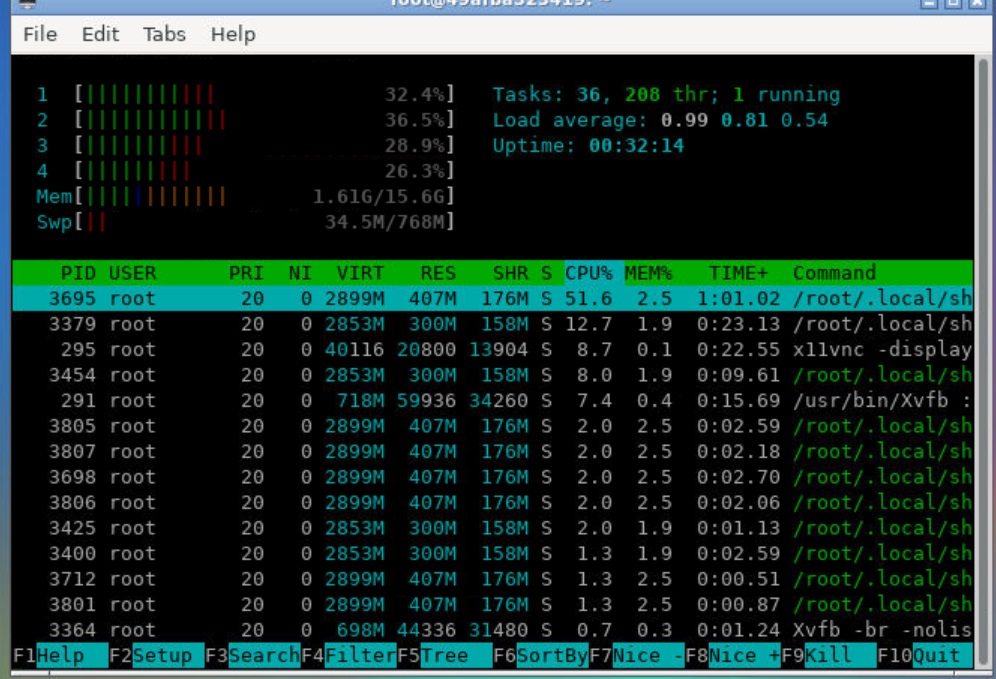 Google shell enable enhanced mode 4 nuclear 16G RAM
 Tmux use tutorial
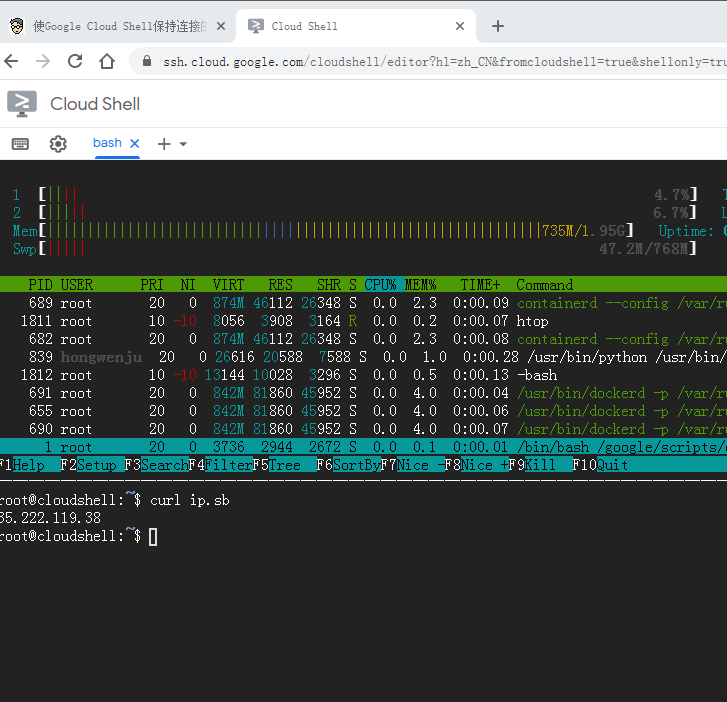 I'm gonna get you a new one, shell.cloud.google on the line.
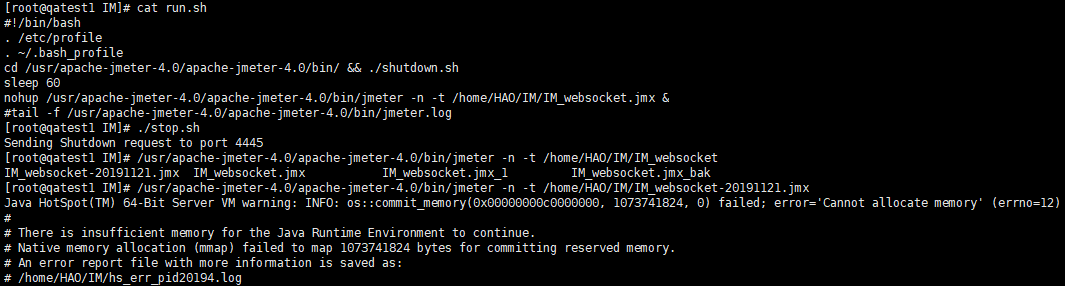 Linux Memory Clearing

