
 ">WeChat

Xrdp is an open source for a Microsoft Remote Desktop Protocol (RDP) that allows you to control the remote system through a graphical interface. Through RDP, you can log in on a remote machine and create a real desktop session, like when you log into a local machine. This guide tells how to install and configure the Xrdp server on Ubuntu 20.04.
I. Installation of desktop environment
The Ubuntu server is usually managed using command lines and does not default on the installation of desktop environments. If you are running a Ubuntu desktop, ignore this step. There are many desktop settings in the Ubuntu source repository for your choice. One option is to install Gnome, which is the default desktop environment for Ubuntu 20.04. Another option is to install xfce. It is fast, stable and light-weight desktop environments that make it an ideal desktop for remote servers. Run any command below to install the desktop environment of your choice:
- Install Gnome
sudo apt update
sudo apt install ubuntu-desktop- Installation Xfce (Recommended)
sudo apt update
sudo apt install xubuntu-desktop
         如果是debian系统使用如下命令
sudo apt updatesudo apt install xfce4 xfce4-goodies xorg dbus-x11 x11-xserver-utils
Depending on your system, downloading and installing the GUI package will take some time.
II. Installation Xrdp
Xrdp is included in the default Ubuntu source. To install it, run:
sudo apt install xrdp Once installed, the Xrdp service will start automatically. You can enter the following command to verify it:
sudo systemctl status xrdp 查看有没有错误 发现错误应该是key错误所以看下面操作添加ssl 然后添加系统自启动 systemctl enThe output will be like the following:
● xrdp.service - xrdp daemon
     Loaded: loaded (/lib/systemd/system/xrdp.service; enabled; vendor preset: enabled)
     Active: active (running) since Fri 2020-05-22 17:36:16 UTC; 4min 41s ago
  ...
By default, Xrdp uses/etc/ssl/private/ssl-cert-snakeoil.key, it is readable only to the “ssl-cert” user combination. Run the following command, willxrdp_Other Organiser
sudo adduser xrdp ssl-cert Restart Xrdp service to make changes effective:
sudo systemctl restart xrdpThat’s it. Xrdp is already installed on your Ubuntu server, and you can start using it now.
iii. Xrdp Configuration
Xrdp Profile Positioning/etc/xrdpDirectory. You do not need to make any changes to the configuration file for basic Xrdp links. Xrdp uses the default X Windows desktop environment()Gnome or XFCE). The main profile is named xrdp.ini. This file is divided into separate sections, allowing you to set up global configurations such as security, listening addresses, creating different xrdp login sessions, etc. Whenever you change the profile, you need to restart Xrdp service. Xrdp usesstartwm.shFile starts X session. Edit this file if you want to use another X Windows desktop. Create system startup# systemctl enable xrdp
Systeml status xrdp found xrdp.service file not available, manualcp xrdp.service /lib/systemd/system
IV. Configure firewalls
Xrdp daemon listen port on all network interfaces3389. If you run a firewall on your Ubuntu server, you need to open the Xrdp port. You want to allow access from a specified IP address or IP range to an Xrdp server, for example192.168.33.0/24, you need to run the following command:
sudo ufw allow from 192.168.33.0/24 to any port 3389If you want access from anywhere (for security reasons, this is not encouraged), run:
sudo ufw allow 3389To increase security, you can consider Xrdp simply listening to localhost and creating a SSH tunnel that will put the local machine in3389The flow between the same port of the port to a remote server is encrypted.
V. Connect to the Xrdp server
Now that you have your Xrdp server set up, it is time to open your Xrdp client and connect to the server. If you have a Windows computer, you can use the default RDP client. Enter “remote” in the Windows Searchbar and click “Remote Desktop Conneaction.” This will open a RDP client. Enter a remote server IP address in the “Computer” area and click on “Connect”.

Enter your username and password on the login screen, click ” OK.”

Once you log in, you’ll see the default Gnome or Xfce desktop that should be like the following:

Now you can interact with your keyboard and mouse on your local machine. If you are running MacOS, you can install Microsoft Remote Desktop from Mac App Store. Linux users can use a RDP client such as Remmina or Vinagre.
Summary
If the desktop isBlackscreen Desktop BackgroundNeeds configuration. xsession files echo xfce4-session> ~/.xsession
Configure a remote desktop that allows you to manage your Ubuntu 20.04 server from your local machine through an easy-to-use graphical interface.
If you have any questions, contact us by:
未经允许不得转载:萌萌Apprentissage » How to install Xrdp server remote desktops on Ubuntu 20.04


 linux One Chinese script
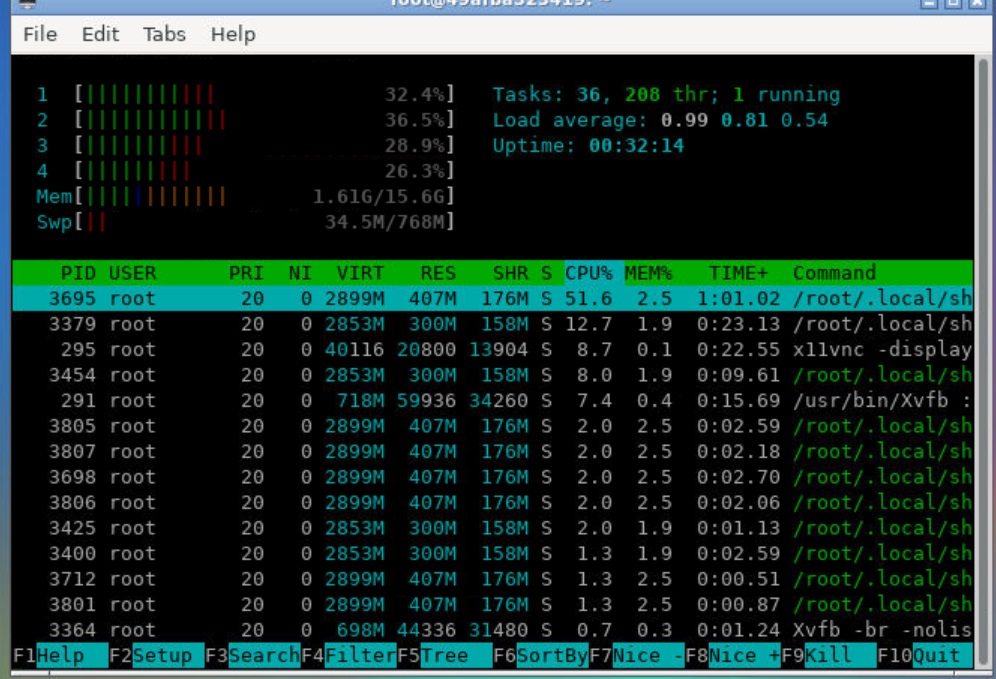 Google shell enable enhanced mode 4 nuclear 16G RAM
 Tmux use tutorial
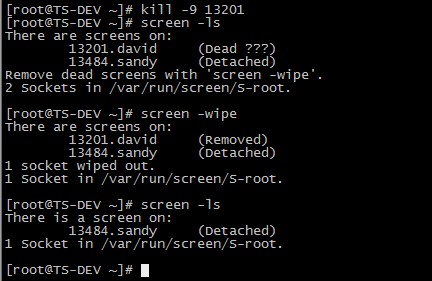 Screen's summary
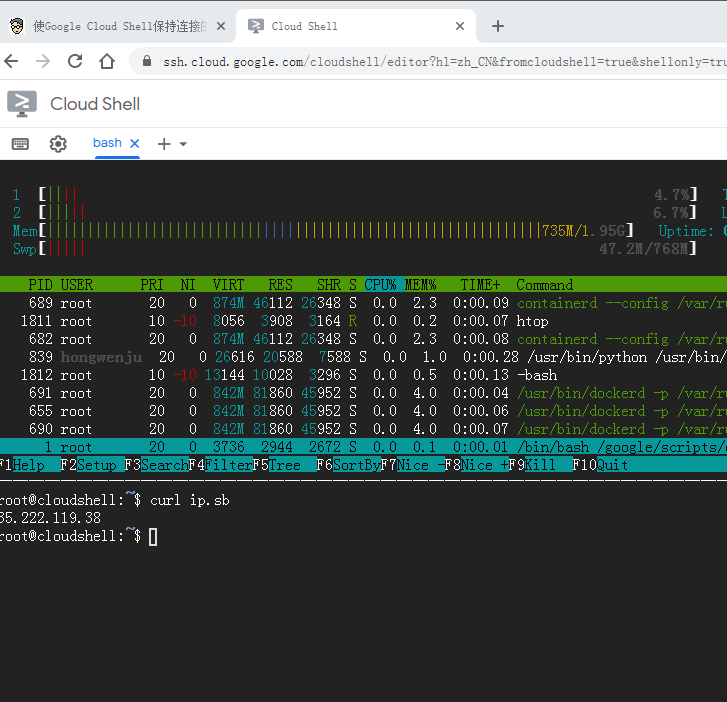 I'm gonna get you a new one, shell.cloud.google on the line.
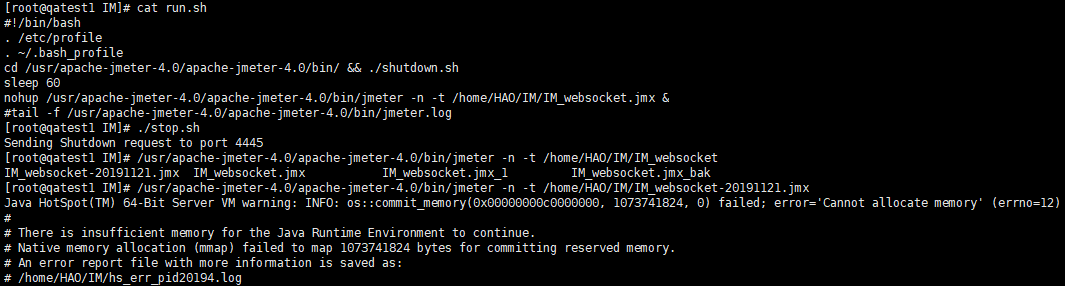 Linux Memory Clearing

