
 ">WeChat
This section focuses on the operation of single and check boxeshttps://www.cnblogs.com/math98/p/11013552.html
I. KNOWING THE FILL AND CHECKboxes
1. Identify the size of single and check boxes first
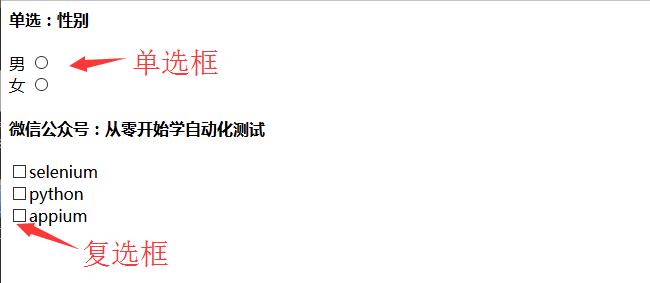
2. The small partners see clearly that the single boxes above are round; the following is square, and this is industry standard. If a small development partner makes a mistake with the icon, you can draw him first.
ii. Radio and checkbox source code
1. The html source code in the above figure is as follows, so that the following paragraph can be complicated and written into the text and the suffix changed to .html.
<html>
<head>
<meta http-equiv=”content-type” content=”text/html;charset=utf-8″ />
<title>Single & Recheck</title>
</head>
<body>
</form>
<h4>Single: gender</h4>
<form>
<label value=”radio”>Men</label>
<input name=”sex” value=”male” id=”boy” type=”radio”><br>
<label value=”radio1″>Women</label>
<input name=”sex” value=”female” id=”girl” type=”radio”>
</form>
<h4>Micro-Credit Public: Automation Test from scratch</h4>
<form>
<!– <label for=”c1″>checkbox1</label> –>
<input id=”c1″ type=”checkbox”>selenium<br>
<!– <label for=”c2″>checkbox2</label> –>
<input id=”c2″ type=”checkbox”>python<br>
<!– <label for=”c3″>checkbox3</label> –>
<input id=”c3″ type=”checkbox”>appium<br>
<!– <form>
<input type=”radio” name=”sex” value=”male” /> Male
<br />
<input type=”radio” name=”sex” value=”female” /> Female
</form> –>
</body>
</html>
III. Single: radio
1. First, position of the positioning box
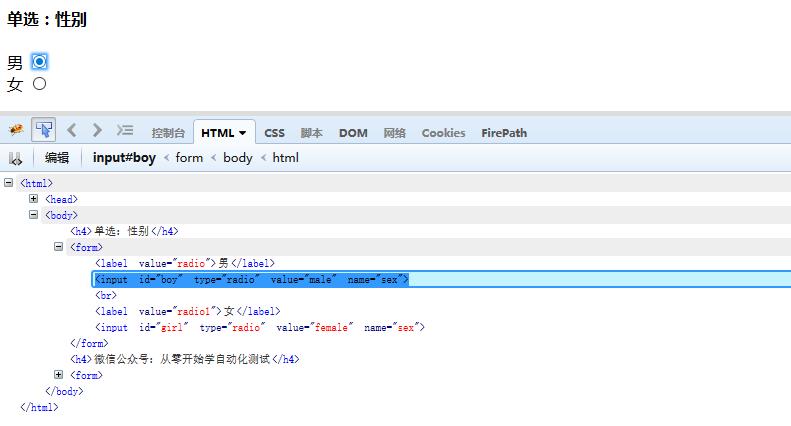
2. Position id, click on the icon, code as follows (retribution to URL address method: pasting the top source code to text after suffix.html opens with a browser and replicating the address in url address bar)
Three clicks on boy, ten seconds before girl. Watch the page changes.
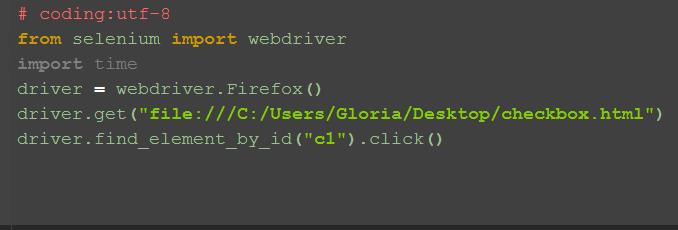
Checkbox: checkbox
1. Check a single box, like the serenium, and you can click directly on id=c1.
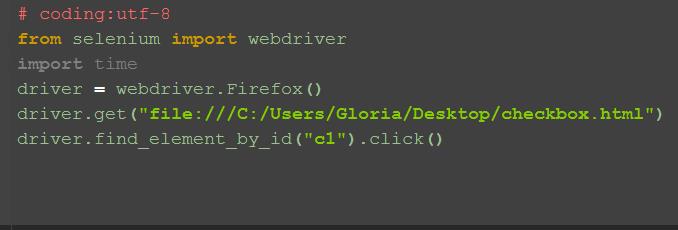
The question arises: what if all of them are selected?
V. All selections:
All ticks can be used to locate a set of elements, as shown by the source above, and in tpe=checkbox for the check box, in xpath: …/* [@type=’checkbox’]
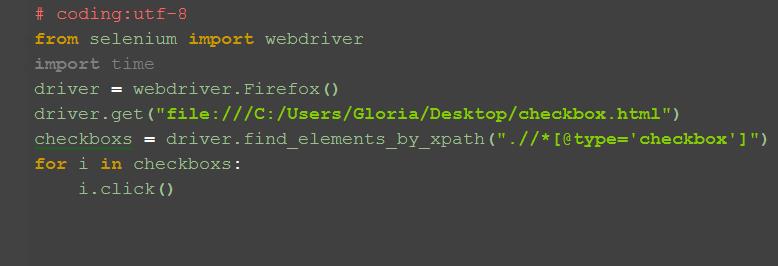
Here’s to the blackboard for notes:find_elementsIt can’t click directly, it’s a complex number, so you have to get all the checkbox objects first, and then go through for a loop of hits.
VI. Whether or not to select:is_selected()
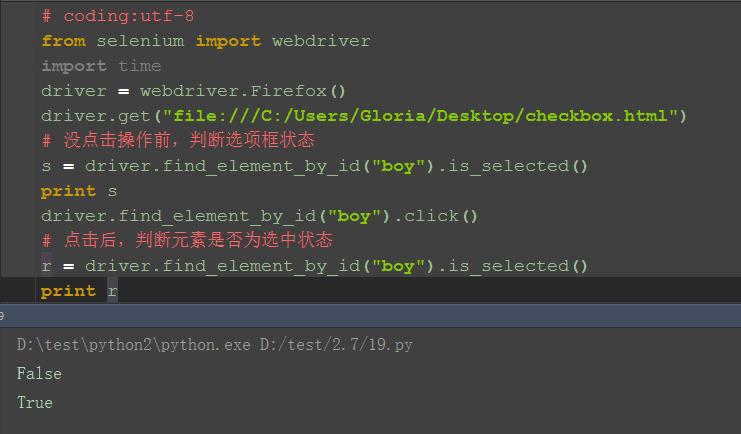
1. Sometimes this box, which is itself an opt-out state, if I click again, it’s not the result that I expect. Can I click when it isn’t; when it’s already a select status, I don’t? The question arises: How can I judge that the options frame is the chosen status?
2. Clicking on the option box is not difficult for you to judge whether or not this step of selection is at the heart of this paper.
3. Return results are of a Bool type, return False without clicking and return to True. It is easy to judge then, either as pre-operational or test results
vii. Reference codes:
# coding:utf-8
from selenium import webdriver
driver = webdriver.Firefox()
driver.get(“file:///C:/Users/Gloria/Desktop/checkbox.html”)
# Before you click on the action, judge the status of the option box
s = driver.find_element_by_id(“boy”).is_selected()
print s
driver.find_element_by_id(“boy”).click()
# Click to judge whether the element is selected
r = driver.find_element_by_id(“boy”).is_selected()
print r
# Check box menu
driver.find_element_by_id(“c1”).click()
# Select All Checkboxes
checkboxs = driver.find_elements_by_xpath(“.//*[@type=’checkbox’]”)
for i in checkboxs:
i.click()
未经允许不得转载:萌萌Apprentissage » python+selenium checkbox and check box (radiobox, checkbox)


 Python batches to extract mainstream search engine pictures
 Python's word crawling across 100 degrees.
 PythonTaiichi Taipei Artificial Intelligence Tensoflow Graphic Processing
 Selenium with Tor Browser using Python
 I'm gonna get you a new one, shell.cloud.google on the line.
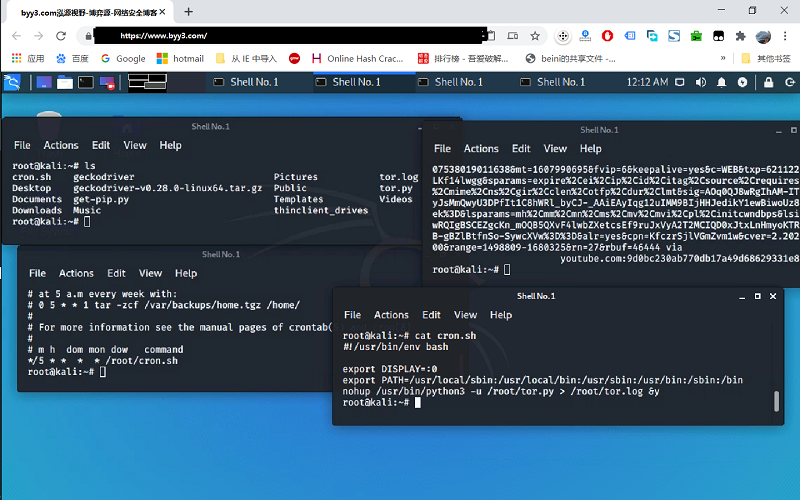 run crontab with python selenium tor browser display in linux
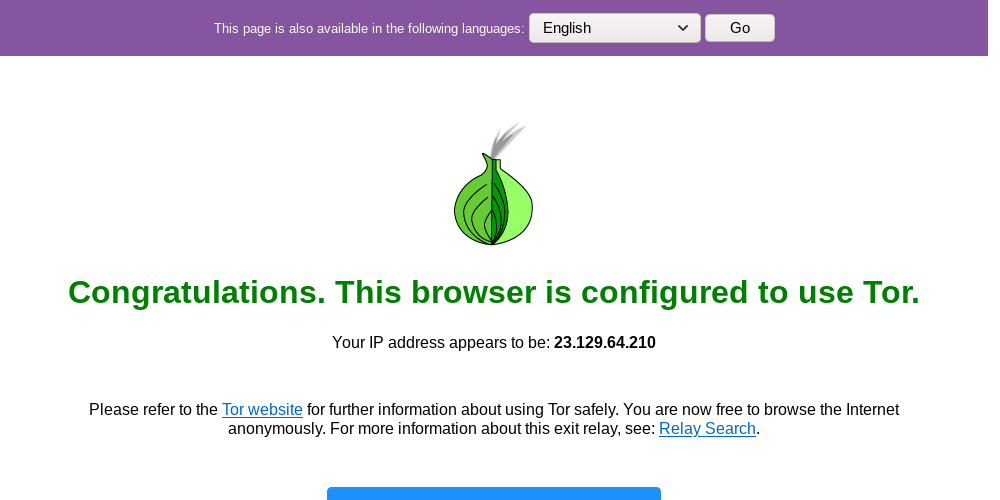 Lineux Environment Use python to call the ter browser random browser web page

